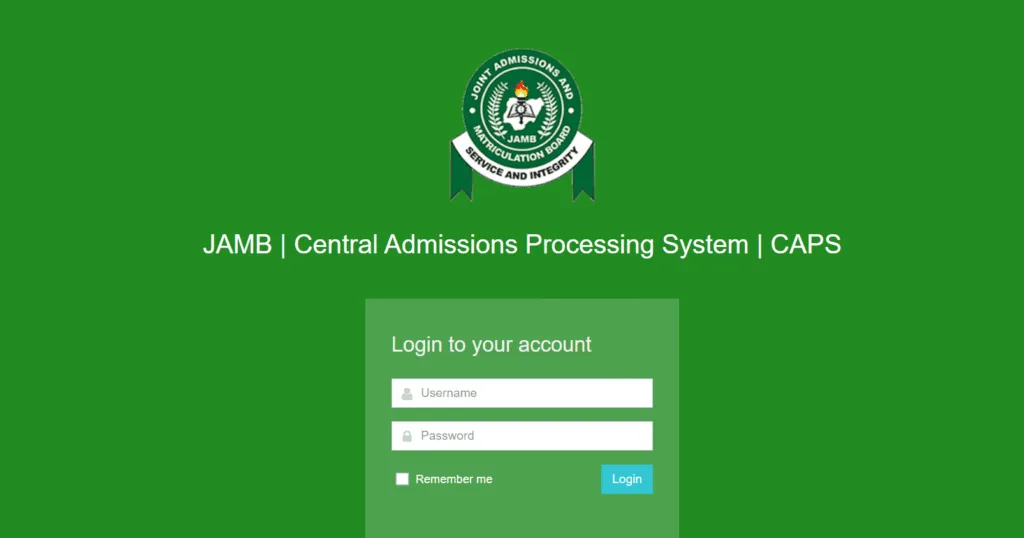
How to Check Your Admission Status on JAMB CAPS 2026/2027: Are you waiting to know whether your preferred university, polytechnic, or college of education has offered you admission for the 2026/2027 academic session? You can check your admission status online through the Joint Admissions and Matriculation Board (JAMB) Central Admissions Processing System, commonly called JAMB CAPS.
JAMB CAPS allows candidates who participated in the 2026 Unified Tertiary Matriculation Examination (UTME) or applied through Direct Entry to monitor their admission progress. Through this platform, you can confirm whether your institution has recommended you for admission, accept or reject an admission offer, and check whether your O’Level results have been uploaded.
The good news is that checking your JAMB admission status is straightforward. You only need an internet-enabled phone or computer, your JAMB profile login details, and your registration number.
In this guide, you will learn how to check your admission status on JAMB CAPS for the 2026/2027 academic session, understand the different admission messages, accept or reject admission, and resolve common problems that may prevent your admission status from appearing.
What Is JAMB CAPS?
JAMB CAPS stands for the Joint Admissions and Matriculation Board Central Admissions Processing System. It is an online platform developed to manage admission into Nigerian tertiary institutions.
The system allows universities, polytechnics, colleges of education, and other participating institutions to process admission applications according to JAMB’s admission requirements.
Before an institution can complete an admission through CAPS, the candidate’s relevant qualifications and admission details must be considered through the approved process.
The platform also allows candidates to monitor their admission progress instead of depending entirely on admission lists published by their institutions.
According to JAMB’s official CAPS information, the system supports admission processing, candidate confirmation of offers, and the uploading of O’Level results for admission consideration.
One important benefit of CAPS is that candidates can confirm their admission directly through JAMB. This helps reduce confusion about admission offers and provides an official record of the admission process.
Is JAMB CAPS Open for the 2026/2027 Academic Session?
Yes. Admission processing for the 2026/2027 academic session is underway, and candidates can access their JAMB CAPS profiles to monitor admission decisions.
In August 2026, JAMB advised candidates with pending admission offers to check CAPS and accept or reject their offers promptly. The announcement followed the commencement of admission processing for the session.
However, admission does not appear for every candidate simultaneously.
Different institutions process admission according to their academic calendars, screening exercises, available spaces, and admission requirements.
Consequently, some candidates may already have admission offers while others continue to see messages such as “Not Admitted” or “Admission in Progress.”
If your admission has not appeared, it does not automatically mean that your application was unsuccessful.
Requirements for Checking Your JAMB Admission Status in 2026
Before accessing JAMB CAPS, ensure that you have the following information.
| Requirement | Purpose |
|---|---|
| JAMB registration number | Identifies your examination record |
| Registered email address | Used to log in to your JAMB profile |
| JAMB profile password | Provides access to your account |
| Internet-enabled device | Allows you to access the portal |
| Stable internet connection | Helps the portal load correctly |
| Examination year | Select 2026 for the 2026/2027 admission exercise |
You do not need to visit a cybercafe simply to view your admission status if you can access your JAMB profile on your own device.
However, certain account-related problems may require assistance from a JAMB office or an accredited CBT centre.
How to Check Your Admission Status on JAMB CAPS for 2026/2027
The official JAMB e-Facility portal is the recommended starting point for checking your admission status.
Follow these steps carefully.
Step 1: Visit the official JAMB portal
Open your browser and visit JAMB e-Facility. Confirm that you are using the official JAMB website before entering your details.
Step 2: Log in to your JAMB profile
Enter the email address linked to your JAMB registration and your profile password. Select the login option to access your dashboard.
Step 3: Select “Check Admission Status”
Once your dashboard opens, locate the admission status service. Depending on the portal layout, it may appear as “Check Admission Status” or “Admission Status.”
Step 4: Select your examination year
Choose 2026 as your examination year. Enter your JAMB registration number if the portal requests it.
Step 5: Click “Access My CAPS”
Select the option that opens the Central Admissions Processing System. You will be redirected to your CAPS dashboard.
Step 6: Open “Admission Status”
From the CAPS navigation menu, select “Admission Status.” The system will display the current admission decision associated with your profile.
Step 7: Review your admission details
If admission has been offered, check the institution and course before deciding whether to accept or reject the offer.
These steps reflect the admission-checking procedure described in JAMB’s official guidance and current admission instructions.
Remember that checking your admission status is different from accepting admission. You can view your admission information without immediately accepting an offer.
How to Check JAMB CAPS Admission Status Using Your Phone 2026/2027
You can check your JAMB CAPS admission status using an Android phone or iPhone.
However, some candidates experience difficulties because the CAPS dashboard may not display all its navigation options in the normal mobile browser view.
For example, you might log in successfully but see only a welcome message or a limited dashboard.
This usually happens because certain CAPS features are easier to access through a desktop browser layout.
A. How to use desktop mode on an Android phone
- Open Google Chrome on your Android phone.
- Visit https://efacility.jamb.gov.ng/.
- Log in with your registered email and password.
- Tap the three-dot menu in Chrome.
- Select “Desktop site.”
- Allow the webpage to reload.
- Open “Check Admission Status” and select “Access My CAPS.”
- Choose “Admission Status” to view your admission information.
B. How to use desktop mode on an iPhone
If you are using an iPhone, open the JAMB portal in Safari.
Tap the page menu in the address bar and select “Request Desktop Website.” The exact menu wording may vary depending on your iOS version.
After the page reloads, access your JAMB profile and open CAPS.
If the portal still does not display properly, try another browser or use a laptop.
JAMB’s support guidance also recommends switching mobile browsers to desktop view when accessing CAPS.
Knowing the Various JAMB CAPS Admission Status Messages
One of the most confusing parts of checking admission status is understanding what the messages mean.
JAMB CAPS may display different messages depending on the stage of your admission application.
The table below explains the common messages and what candidates should do.
| CAPS message | Meaning | Recommended action |
|---|---|---|
| Not Admitted | No final admission offer is currently recorded | Keep checking and confirm your eligibility |
| Admission in Progress (AIP) | Your admission is undergoing processing or verification | Wait for the final decision |
| Recommended | Your institution has recommended you for admission | Monitor CAPS for approval |
| Admission Offered | An admission offer is available | Review and accept or reject it |
| Accepted | You have accepted the admission offer | Proceed with the required documentation |
| Transfer Approval | Your institution is considering you for another course | Review the proposed programme and respond |
These messages do not all represent final admission decisions.
For instance, a candidate whose status reads “Admission in Progress” should not assume that admission has been fully approved.
Similarly, a recommendation from an institution does not necessarily mean that the candidate can immediately print an official admission letter.
What does “Not Admitted” mean on JAMB CAPS?
“Not Admitted” means that JAMB CAPS does not currently show a completed admission offer for your profile.
Several factors may explain this message.
Your institution may not have completed its admission processing, your O’Level results may be missing, or your application may still be under consideration.
It is also possible that your application has not met the institution’s admission requirements.
Therefore, you should not interpret “Not Admitted” as a final rejection while the admission exercise remains ongoing.
What does “Admission in Progress” mean?
Admission in Progress, commonly abbreviated as AIP, indicates that your admission recommendation is being processed.
JAMB explains that this status means an institution has submitted a candidate’s details for verification and review before final approval. JAMB Support
Although it is a positive development, it does not guarantee admission.
You should continue monitoring your CAPS profile until the system displays a final decision.
What does “Recommended” mean?
A “Recommended” status indicates that your preferred institution has assessed your qualifications and recommended you for admission.
The recommendation may be based on your UTME performance, O’Level results, subject combination, and other relevant admission criteria.
However, the recommendation must still pass through the required approval process.
Until an official admission offer appears, you should avoid treating the recommendation as a completed admission.
How to Accept Admission on JAMB CAPS in 2026/2027
If your CAPS dashboard displays an admission offer, you must decide whether to accept it.
Accepting admission confirms that you agree to the offer made through the platform.
Follow these steps:
- Visit the official JAMB e-Facility portal.
- Log in to your JAMB profile.
- Open “Check Admission Status.”
- Select 2026 as your examination year.
- Click “Access My CAPS.”
- Select “Admission Status.”
- Review the institution and course offered.
- Click “Accept Admission” if you agree with the offer.
- Complete any confirmation requested by the portal.
- Return to your CAPS dashboard to verify that the acceptance has been recorded.
Before accepting, ensure that the institution and programme displayed are correct.
This is particularly important if you applied for one course but your institution has considered you for another.
According to JAMB’s official support guidance, accepting an admission offer finalizes the candidate’s acceptance, and changing the admission afterward is restricted. JAMB Support
What happens after accepting admission?
Once your acceptance has been successfully recorded, you can proceed with the next stage of admission documentation.
Depending on your institution’s requirements, you may need to print your JAMB admission letter, pay an acceptance fee, complete online clearance, and submit the necessary academic documents.
You should also monitor your institution’s admission portal for registration instructions.
Importantly, accepting admission on JAMB CAPS does not automatically complete your school’s registration process.
Your institution may have separate requirements and deadlines.
How to Reject Admission on JAMB CAPS 2026/2027
You can reject an admission offer if you do not wish to accept the institution or course offered.
To reject an admission:
- Log in to your JAMB profile.
- Open “Check Admission Status.”
- Access your CAPS dashboard.
- Select “Admission Status.”
- Review the admission offer carefully.
- Click “Reject Admission.”
- Confirm your decision if requested.
Rejecting an offer means that you are declining that particular admission.
However, rejection does not guarantee that another institution will offer you admission.
Before rejecting, consider whether you have another confirmed opportunity and whether the admission exercise is still ongoing.
Do not reject an offer simply because you expect another school to admit you.
How to Check Your O’Level Result on JAMB CAPS 2026/2027
Your O’Level result is an important part of the admission process.
Candidates who registered with awaiting results must ensure that their completed examination results are available to JAMB for admission consideration.
If your WAEC, NECO, or other accepted O’Level result is missing from CAPS, your admission processing may be affected.
To check your O’Level result:
- Log in to https://efacility.jamb.gov.ng/.
- Select “Check Admission Status.”
- Click “Access My CAPS.”
- Locate “My O’Level” in the navigation menu.
- Open the section to view your uploaded subjects and grades.
If your subjects and grades appear correctly, your results are visible in the system.
If the section is blank or still shows awaiting results, you need to resolve the issue.
JAMB’s support guidance advises candidates with missing O’Level records to visit an accredited CBT centre. However, JAMB also announced an arrangement in August 2026 allowing candidates to verify and upload eligible O’Level results from home. Candidates should therefore check the current options available on their official JAMB profiles.
Always confirm that your uploaded grades are accurate.
What to Do If Your JAMB CAPS Says “Not Admitted”
Seeing “Not Admitted” can be disappointing, especially when other candidates have started receiving offers.
Nevertheless, there are practical steps you can take to determine whether something needs attention.
1. Confirm that your O’Level result is available
Your first step should be checking the “My O’Level” section of CAPS.
If your results are missing, use the approved JAMB process to upload or verify them.
2. Check your institution’s admission portal
Some institutions publish admission updates through their own websites.
Visit your school’s official admission portal to determine whether it has released admission lists or provided further instructions.
If your institution has offered you admission but CAPS has not updated, contact its admissions office.
3. Review your admission requirements
Ensure that you meet the admission requirements for your preferred course.
These may include your UTME score, O’Level grades, required subject combination, and screening performance.
For the 2026 admission exercise, JAMB’s published minimum tolerable admission scores include 150 for universities and 100 for polytechnics and colleges of education. These are national minimum thresholds, not guarantees of admission, and institutions or programmes may apply higher requirements. Joint Admissions and Matriculation Board
4. Check your transfer approval section
Sometimes, an institution may consider a candidate for a different course.
Open “Transfer Approval” on CAPS to determine whether such a proposal exists.
If you find a transfer proposal, review the course before accepting or rejecting it.
5. Continue monitoring your admission status
Institutions may release admission offers in batches.
If your application remains under consideration, checking CAPS periodically can help you identify changes.
You do not need to refresh the portal continuously. Check regularly and pay attention to official announcements from your institution.
How to Check JAMB CAPS Transfer Approval 2026
Transfer Approval is a feature that allows institutions to propose a different programme for a candidate.
For example, a candidate who applied for Computer Science might be considered for another related course if the institution determines that the candidate meets the alternative programme’s requirements.
This is only an illustration. The actual course offered depends on the institution.
To check your transfer approval status, log in to your JAMB profile, open CAPS, and select “Transfer Approval.”
If a proposal is available, the system will display the relevant information.
You can then accept or reject the proposed transfer.
Accepting a transfer proposal is not necessarily the same as accepting a final admission offer. You should still monitor the “Admission Status” section for the final decision.
JAMB confirms that the Transfer Approval feature is used when institutions consider candidates for alternative programmes. JAMB Support
How to Print Your JAMB Admission Letter After Accepting Admission
Once you have accepted your admission and the official record is available, you can proceed to print your JAMB admission letter.
The admission letter is an important document that confirms your admission through JAMB.
Many institutions request it during physical clearance, documentation, or registration.
- To print it, visit the JAMB e-Facility portal and log in to your account.
- Locate the “Print Admission Letter” service and follow the instructions displayed.
- You may be required to make a payment through the official portal before downloading the letter.
- After completing the process, download your admission letter and keep a printed or electronic copy.
According to JAMB’s official support information, candidates can print their admission letters through the e-Facility portal after completing the required payment. JAMB Support
Make sure the information on your admission letter matches your personal and academic records.
If you notice an error, seek assistance through the appropriate JAMB support channel.
Common JAMB CAPS Problems and How to Fix Them
Candidates sometimes experience technical or account-related problems when checking their admission status.
The following table explains common issues and possible solutions.
| Problem | Possible cause | What to do |
|---|---|---|
| CAPS shows only a welcome message | Mobile browser layout | Enable desktop mode |
| Admission status is not displaying | Portal or network problem | Refresh the page or try again later |
| Incorrect login details | Wrong email or password | Recover your account credentials |
| O’Level results are missing | Results not uploaded or verified | Use an approved JAMB upload or verification channel |
| Accept button is unavailable | No active offer or interface problem | Confirm the offer and retry on desktop mode |
| School admission is not on CAPS | Institution has not completed the CAPS process | Contact the school’s admissions office |
| CAPS shows a different course | Alternative programme consideration | Check Transfer Approval |
| Accepted admission is not reflected on e-Facility | Records may not have synchronized | Use “Refresh Admission from CAPS” if available |
| Portal is slow or unavailable | Heavy traffic or temporary technical issue | Try again later |
If a problem continues after basic troubleshooting, contact JAMB through its official support system at JAMB Support.
Avoid giving your JAMB password to individuals who claim they can manipulate admission decisions.
Can You Check JAMB Admission Status Without Your Registration Number?
Your JAMB registration number is an important identifier used to retrieve your admission record.
Although you normally log in to e-Facility using your registered email address and password, the admission status service may also request your examination year and registration number.
If you have forgotten your registration number, check your UTME examination slip, original result slip, or other official JAMB documents.
You may also find relevant registration information in your JAMB profile.
If you cannot recover your details, contact an official JAMB support channel.
Avoid using unofficial websites that request sensitive information without explaining how it will be protected.
Can You Check JAMB Admission Status Without an Email Address?
Accessing the full JAMB CAPS dashboard normally requires you to log in to your JAMB e-Facility account.
This means you need the login credentials associated with your profile.
If you cannot remember the email address linked to your JAMB registration, check your registration documents or previous JAMB correspondence.
If you know your email address but have forgotten your password, use the password recovery option on the official portal.
Where account recovery is unsuccessful, seek assistance from JAMB.
Be cautious of websites claiming that they can access every candidate’s CAPS account using only a registration number.
Is Checking JAMB Admission Status Free?
You can generally log in to your JAMB e-Facility account and view your CAPS admission status without paying a separate admission-checking fee.
However, you may incur internet data charges when accessing the portal.
Some other JAMB services, such as printing an official admission letter or requesting corrections to personal information, may require payment.
These services are different from simply viewing your CAPS admission status.
Candidates should use official JAMB payment channels whenever payment is required.
Do not pay an individual who promises to secure admission or change your CAPS status in exchange for money.
Important Things to Do After Receiving Admission in 2026
Receiving an admission offer is an important stage, but there are additional requirements before you can fully begin your studies.
- First, accept your admission on JAMB CAPS after confirming that the institution and course are correct.
- Next, check your institution’s admission portal to understand its acceptance fee, clearance procedures, and registration deadlines.
- You may need to prepare documents such as your O’Level result, JAMB result slip, admission letter, birth certificate, and other records requested by your institution.
- Keep your documents organized so that you can complete the clearance process without unnecessary delays.
- Also, confirm your institution’s resumption date through its official website.
Do not assume that all institutions will resume at the same time simply because they belong to the same academic session.
Frequently Asked Questions (FAQs)
1. Has JAMB started giving admission for 2026/2027?
Yes. Admission processing for the 2026/2027 academic session has commenced. However, institutions release admission offers at different stages, so not every candidate will receive an offer at the same time.
2. What is the official website for checking JAMB admission status?
The official website is https://efacility.jamb.gov.ng/. Log in to your profile and access the CAPS admission status section.
3. Can I check my admission status using my phone?
Yes. You can use an Android phone or iPhone. If CAPS does not display correctly, enable desktop mode in your browser.
4. What should I do if JAMB CAPS says “Not Admitted”?
Check that your O’Level results are available, confirm your admission requirements, and monitor your institution’s admission announcements. If your school has already offered you admission, contact its admissions office about the CAPS record.
5. Does “Admission in Progress” mean I have been admitted?
No. It means your admission is undergoing processing or verification. You must wait for an official admission offer before treating the admission as confirmed.
6. How long does it take for JAMB CAPS to change from “Admission in Progress” to “Admitted”?
There is no fixed period that applies to every candidate. Processing depends on the institution, the verification process, and the admission exercise.
7. Can I accept admission on JAMB CAPS without visiting a cybercafe?
Yes. If you can access your CAPS dashboard and the acceptance option is available, you can accept your admission using your own device.
8. What happens if I do not accept my JAMB admission?
You may lose the admission offer if you fail to accept it within the applicable deadline. JAMB’s official support guidance notes that candidates are normally given a limited acceptance period, commonly around three to four weeks, although you should follow the deadline communicated for your offer. JAMB Support
9. Can I accept admission on JAMB CAPS and still change my institution?
Changing an accepted admission is restricted. JAMB states that once an admission has been accepted and an admission letter issued, changes require the appropriate formal admission reversal process.
10. Why is my school admission showing but JAMB CAPS says “Not Admitted”?
Your institution may not have completed the admission recommendation or approval process on CAPS. Missing O’Level results may also affect the process. Contact your institution’s admissions office for clarification.
11. Can Direct Entry candidates check admission on JAMB CAPS?
Yes. Direct Entry candidates can use their JAMB profiles to monitor admission processing and respond to offers when available.
12. Can I check my admission status every day?
Yes. You can access your CAPS profile regularly. However, checking repeatedly does not speed up admission processing.
13. What happens if I mistakenly reject admission?
You should contact your institution’s admissions office or JAMB support promptly. Reversing a rejected admission is not guaranteed, so always review your decision before confirming it.
14. Is admission on a school’s portal enough?
You should ensure that your admission is also properly reflected through JAMB CAPS. An institution’s admission announcement and a completed JAMB admission record are not always the same thing.
15. How do I know that my JAMB admission is confirmed?
Check that CAPS displays your official admission offer and that your acceptance has been recorded. You should also be able to access the appropriate admission documentation once the relevant processes are completed.
Conclusion
Checking your admission status on JAMB CAPS for the 2026/2027 academic session is an important step for candidates seeking admission into Nigerian tertiary institutions. The process begins by visiting the official JAMB e-Facility portal, logging in to your profile, selecting the 2026 examination year, and opening the CAPS admission status section.
If you receive an admission offer, review the details carefully before accepting or rejecting it. If your status still reads “Not Admitted” or “Admission in Progress,” confirm that your O’Level results are available and continue monitoring official admission updates.
Remember that admission processing varies across institutions, and a delay does not automatically mean rejection.
For reliable information, always use the official JAMB portal and your institution’s approved communication channels.
- Official JAMB admission portal: Check Your JAMB Admission Status
- Official JAMB website: Joint Admissions and Matriculation Board
- Official JAMB support: JAMB Help and Support